> For the complete documentation index, see [llms.txt](https://old-manual.converia.de/llms.txt). Markdown versions of documentation pages are available by appending `.md` to page URLs; this page is available as [Markdown](https://old-manual.converia.de/en/general/your-own-converia-website/article/add-and-edit-articles/types-of-articles/create-articles-with-rich-text-editor-rte.md).
# Create articles with Rich Text Editor (RTE)
CMS
The RTE provides various tools for formatting, linking, etc., which can be used in a similar way to a word processing program. Some special use cases are explained in more detail here.
Fig. 1: RTE
## General tips
1. Tables should be avoided. These often lead to problems on responsive websites and they are also not barrier-free. Alternatively, the information can be displayed as [structured data](https://manual.converia.de/allgemeines/die-eigene-converia-webseite/strukturierte-daten).
2. If content is copied from other files, it should be pasted without formatting into the editor window (Ctrl + Shift + V) or directly via *Tools* > *Source code* to avoid transferring unwanted style elements.
3. Unnecessary formatting such as a fixed width for images should be avoided. This leads to unsightly displays on devices with a different viewport.
4. If content or entire articles are to be copied 1:1, this should be done via *Tools* > *Source code*. Copying via source code ensures exact transfer of formatting and links, avoids errors and saves post-processing.
## Insert links
Fig. 2: Internal / external links
A distinction is made between internal links (within the Converia website) and external links (to other websites). In both cases, the text to be linked must first be selected.
### External links
Fig. 3: External links
* *Insert/edit link* button (Fig. 2, point 1)
* Enter the address in the URL line
* Select the title to be displayed when hovering over it
* Select whether the link target should open in the same tab (*Target: None*) or in a new tab (*Target: New window*)
* Confirm with *Ok*
### Internal links
Fig. 4: Internal links
* *Insert/edit Converia link* button (Fig. 2, point 2).
* Select whether the link target should open in the same or a new tab.
* Selection of the desired subportal
* Selection of folder or page in the page structure
* Confirm with *Ok*
{% hint style="success" %}
Using a fixed file structure for internal links offers several advantages. Firstly, it avoids the risk of linking to URLs that are only valid for a specific session. This can prevent error messages and is also important for security reasons. Secondly, this method reduces the chance of links subsequently becoming invalid, which minimizes so-called "dead links".
{% endhint %}
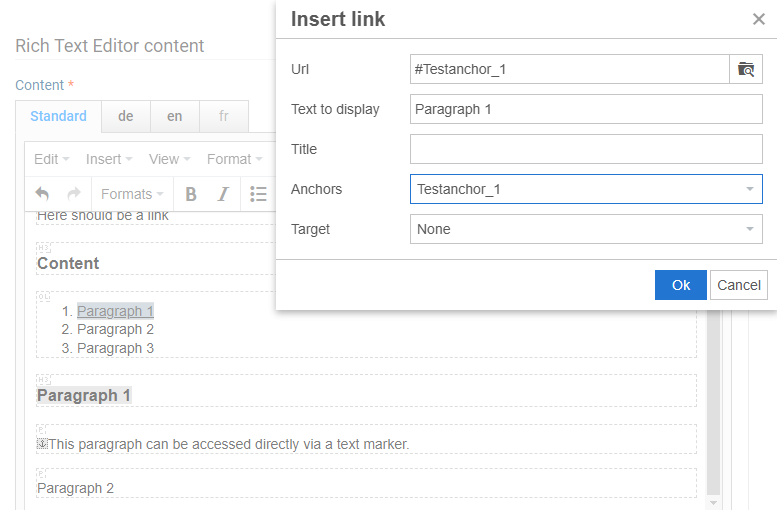
## Anchors
Fig. 5: Link anchors
Another option for linking are so-called *Anchors*. These can be used to create **links for paragraphs within a page** . This is useful if you have a long article with many sections that contains a table of contents at the top (e.g. FAQ or terms and conditions article).
Anchors can be placed anywhere in the article via *Insert* > *Anchor*.
Links to set anchors are created via *Insert/edit link* (Fig. 5). The appropriate anchor can be selected in the *Anchors* drop-down form field.
{% hint style="success" %}
Linkable anchors are automatically set for headings. The headings can be selected as the target with a click in the URL line under *Insert/edit link* and are not listed as *anchors*.
{% endhint %}
## Link images
Fig. 6: Link images
Images are often used to make the website more attractive. Especially when it comes to sponsor logos or hotel descriptions, for example, it is practical if the image is linked directly. This is also very easy to do using the text editor:
* First insert the image (Fig. 6, point 1) . If necessary, the image must first be uploaded to the [media browser](/en/general/your-own-converia-website/media.md) so that it can be used.
* Select the image in the editor window.
* Set the desired form of linking (usually external linking, Fig. 6, point 2).
## Download of documents
Fig. 7: Download of documents
Instead of other websites, documents can also be stored as link targets and thus made available for download.
* Select the text to be linked
* *Insert/edit link*
* Call up the media browser via the *Select file* button (Fig. 7), upload the desired document if necessary and select with *Apply*
* Select *New window* as destination for downloads (Fig. 7)
If the download material should not be publicly accessible, there are various options for restricting access in addition to password protection in the document itself. More information on this can be found in the chapter [Restricting the visibility of page content](/en/general/your-own-converia-website/page-structure/create-and-edit-pages/page-content-and-modules/restrict-the-visibility-of-page-content.md).
## Embed external media and elements
The easiest way to provide videos or maps/locations, for example, is to embed them via the respective company.
Google, for example, provides detailed instructions for this, similar to OpenStreetMap:
[Youtube Video](https://support.google.com/youtube/answer/171780?hl=en\&sjid=5491747862295521651-EU)
[Google Maps map](https://support.google.com/maps/answer/7101463?co=GENIE.Platform\&hl=en\&visit_id=638700448278219435-1659612174\&rd=1\&sjid=5491747862295521651-EU)
{% hint style="danger" %}
When embedding external services (e.g. YouTube, Google Maps, etc.), the rules for use and the Privacy Policy of the respective provider or platform must be observed. As a rule, external services collect data, which must also be noted in the Privacy Policy when they are used. Converia accepts no liability for improper use.
{% endhint %}